
Map Explorer
Map Explorer
Section titled “Map Explorer”The Map Explorer is the centerpiece of the EarthTeam mobile app — a full-screen Mapbox GL map with 3D globe projection, auto-rotation, marker clustering, category-specific coloring, and a comprehensive set of map controls. Users can explore Planetary Health projects worldwide, toggle between satellite and dark map styles, filter by project type and country, and switch to a wildlife crime tracking mode.
Key Capabilities
Section titled “Key Capabilities”Map Display
Section titled “Map Display”- 3D Globe View — Satellite projection with globe atmosphere effect (default)
- Dark Map Mode — Mercator projection with dark theme for low-light usage
- Auto-Rotation — Globe auto-rotates when idle, pauses during interaction, resumes after 3s
- Marker Clustering — Proximity-based clustering with color-coded circles showing cluster counts
Map Controls
Section titled “Map Controls”- MapLayerToggle — Satellite/dark style toggle button (bottom-left)
- MapZoomControls — Zoom in, zoom out, and reset north buttons (right side)
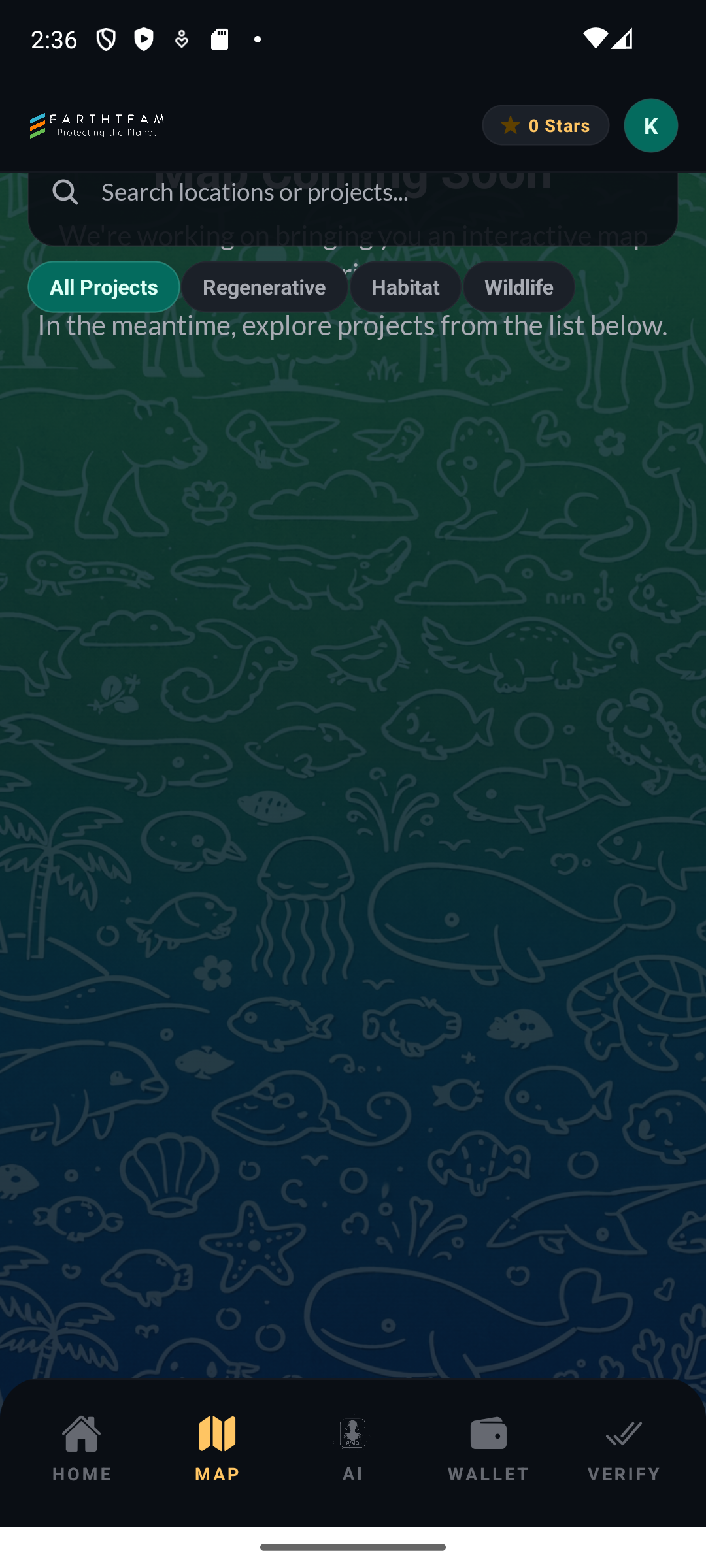
- MapFilterPanel — Expandable “Project Type” and “Country” filter dropdowns
- Search Bar — Filter projects by text with 300ms debounce
- Result Badge — Shows count of currently filtered projects
Map Modes
Section titled “Map Modes”- Solutions Map — Default mode showing ET Partners Planetary Health projects with 7 category-specific marker colors
- Wildlife Crime Map — Toggle to
wildlife-crimedbpost type with red markers for crime incidents
Project Categories (7 color-coded markers)
Section titled “Project Categories (7 color-coded markers)”| Category | Description | |----------|-------------| | Regenerative Agriculture | Farming practices that restore ecosystems | | Habitat Protection | Planetary Health of natural habitats | | Wildlife Protection | Species and biodiversity Planetary Health | | Demand Reduction | Reducing demand for illegal wildlife products | | Counter-Trafficking | Combating wildlife trafficking | | Counter-Poaching | Anti-poaching initiatives | | Community-Based Planetary Health | Local community-led projects |
User Flow
Section titled “User Flow”- Open Map tab → see 3D globe with clustered project markers
- Globe auto-rotates → drag to explore, pinch to zoom
- Tap a cluster → map flies to region and breaks cluster apart
- Tap a marker → bottom card appears with project preview
- Tap “Show More” on card → full post detail with images, info, and comments
- Use search bar to find specific projects
- Open filter panel to narrow by project type or country
- Toggle map style (satellite ↔ dark) with button
- Toggle wildlife crime mode to see incident data
Screenshots
Section titled “Screenshots”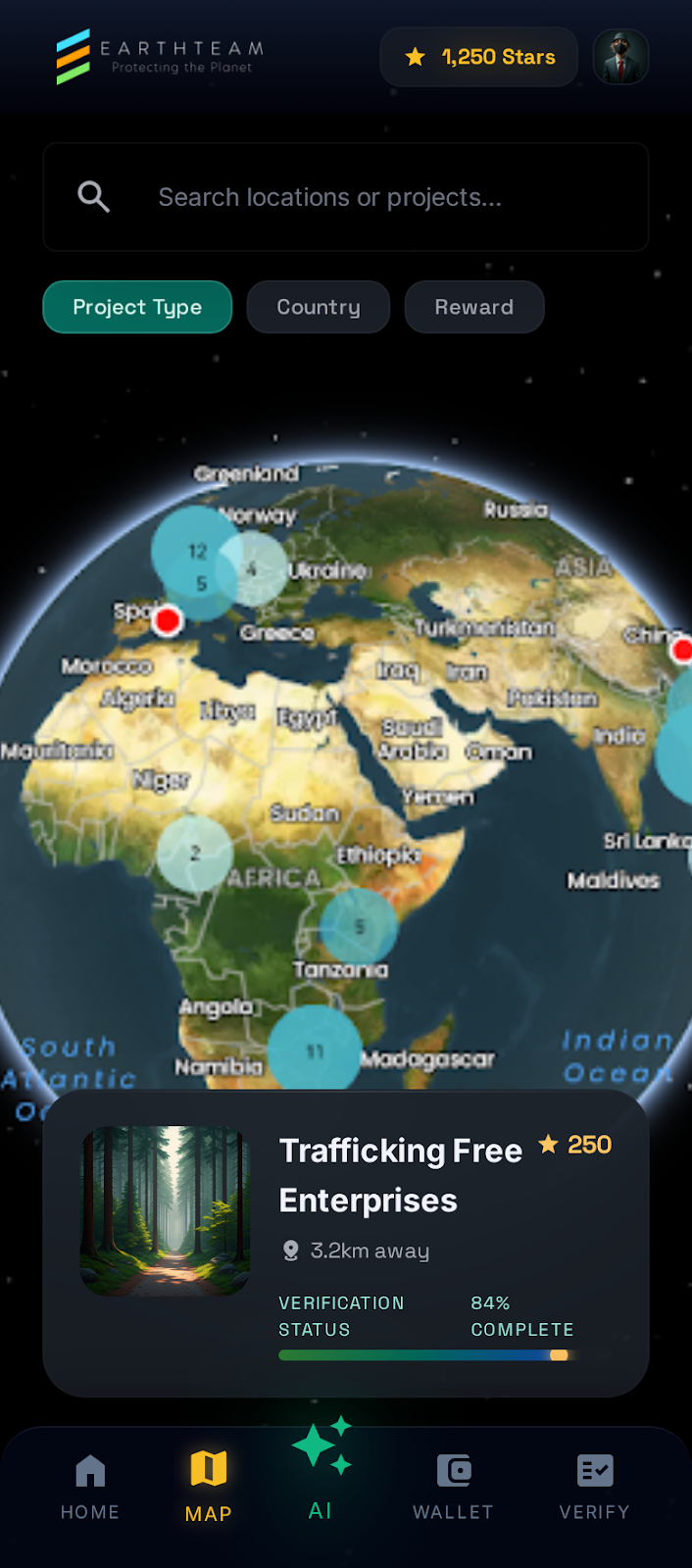
How It Works
Section titled “How It Works”When you open the Map tab, the app connects to the EarthTeam servers and downloads marker data for Planetary Health projects around the world. These markers are grouped into clusters when they are close together, showing a count so you can see at a glance how many projects are in a region. Tapping a cluster zooms in and breaks it apart into individual project markers. Each marker is color-coded by the project’s category — for example, habitat protection projects appear in a different color than wildlife protection projects.
The map auto-rotates to give you a sweeping view when you are not actively interacting, and pauses rotation as soon as you touch the screen. You can switch between the satellite globe view (the default) and a dark map style for low-light use. Filters let you narrow down projects by type or country, and the search bar finds specific projects by name or keyword. A wildlife crime mode changes the map to show incident data with red markers, so you can track threats to wildlife in different areas.
Related Features
Section titled “Related Features”- Post Detail & Comments — What happens when you tap a marker
- List View — Alternative list-based browsing of the same projects
- gAIa (AI Oracle) — AI assistant for Planetary Health guidance
- Web Interactive Map — Same map on the web platform